

Features
Databases
Learn how your project stores data and how to browse, edit, and back it up
Every Vibewax project comes with its own database. Anything your site or app needs to remember goes there: messages from your contact form, email addresses from newsletter signups, blog posts, booking requests, user accounts, and so on.
You don’t need to set one up with a provider, enter credentials, or connect anything. Vibewax creates one for you the first time your project needs it, and the Database tab in your chat is where you view that data, work with it, and download a copy.
How databases work in Vibewax
A database stores information so it’s still there after the page reloads, ready for you to come back to whenever you need it. Think of it as a spreadsheet that lives behind your project, where each row is one item, such as one subscriber, and each column is a piece of information, such as email or date.
Vibewax creates a database for every project automatically:
- Ready to use: It updates in real time and scales on its own, with nothing to configure on your side.
- Isolated per project: Data from one project can never mix with data from another.
- Hosted in the EU: Your data is held in the EU (Ireland). You’ll find more in Security.
If your project doesn’t have a database yet, the Database tab shows a Set up Database button. You can also just describe what you want to store in chat, and the agent sets it up for you.
Your database in the chat
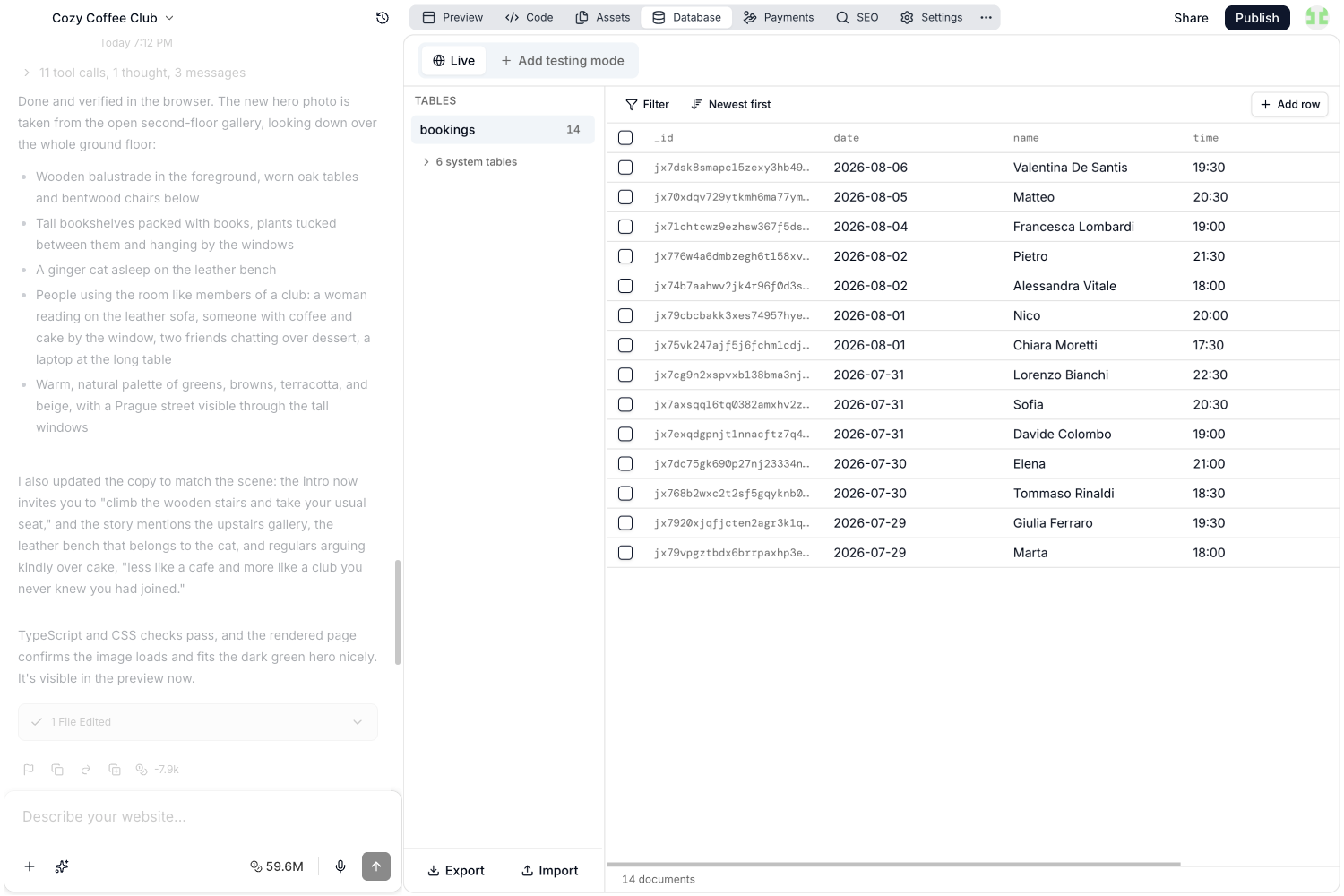
Your Tables are listed on the left of the Database tab, each with its current row count. Tables that belong to libraries your project uses, such as those behind authentication, are grouped below and stay collapsed until you open them. Click a table name to open it in the grid on the right.
Browsing and filtering
- Pagination: Rows load 50 at a time and keep loading as you scroll. Load more at the bottom fetches more rows, next to a counter showing how many rows the table holds.
- Sorting: Newest first and Oldest first flip the order.
- Filtering: Filter lets you narrow the data down. Pick a field, an operator, and a value, then click Apply. Operators include equals, does not equal, greater than, less than, exists, does not exist, and matching by type. Add more conditions and they’re combined with “and”. Clear filters removes them again.
- Live updates: Rows your app creates while you’re looking at the table appear on their own.
Fields that point at another table are shown as links. Click one to go straight to the row it refers to.
Editing rows
You can change data directly in the grid, without going through the agent.
- Click a text cell to edit it right there. Press Enter to save, or Escape to cancel. Checkboxes toggle with a single click.
- Click a row to open a form with one field per column. You can enter numbers, dates, lists, and references, see which fields are required, and copy the row as JSON if you want it on your clipboard. Click Save when you’re done.
- Add row creates a new row in the table you’re viewing, based on the fields Vibewax already knows about.
- Tick one or more rows to get a Delete button. The checkbox in the header row selects the whole table. Vibewax asks you to confirm. Deletions can’t be undone.
The Database tab is for data, not for structure. Creating, renaming, and deleting tables, and changing which fields a table has, live in your project’s code, so the agent handles them. Ask for it in chat, for example: “Add a phone field to the Leads table.”
Downloading and restoring
At the bottom of the Tables list you’ll find Export and Import.
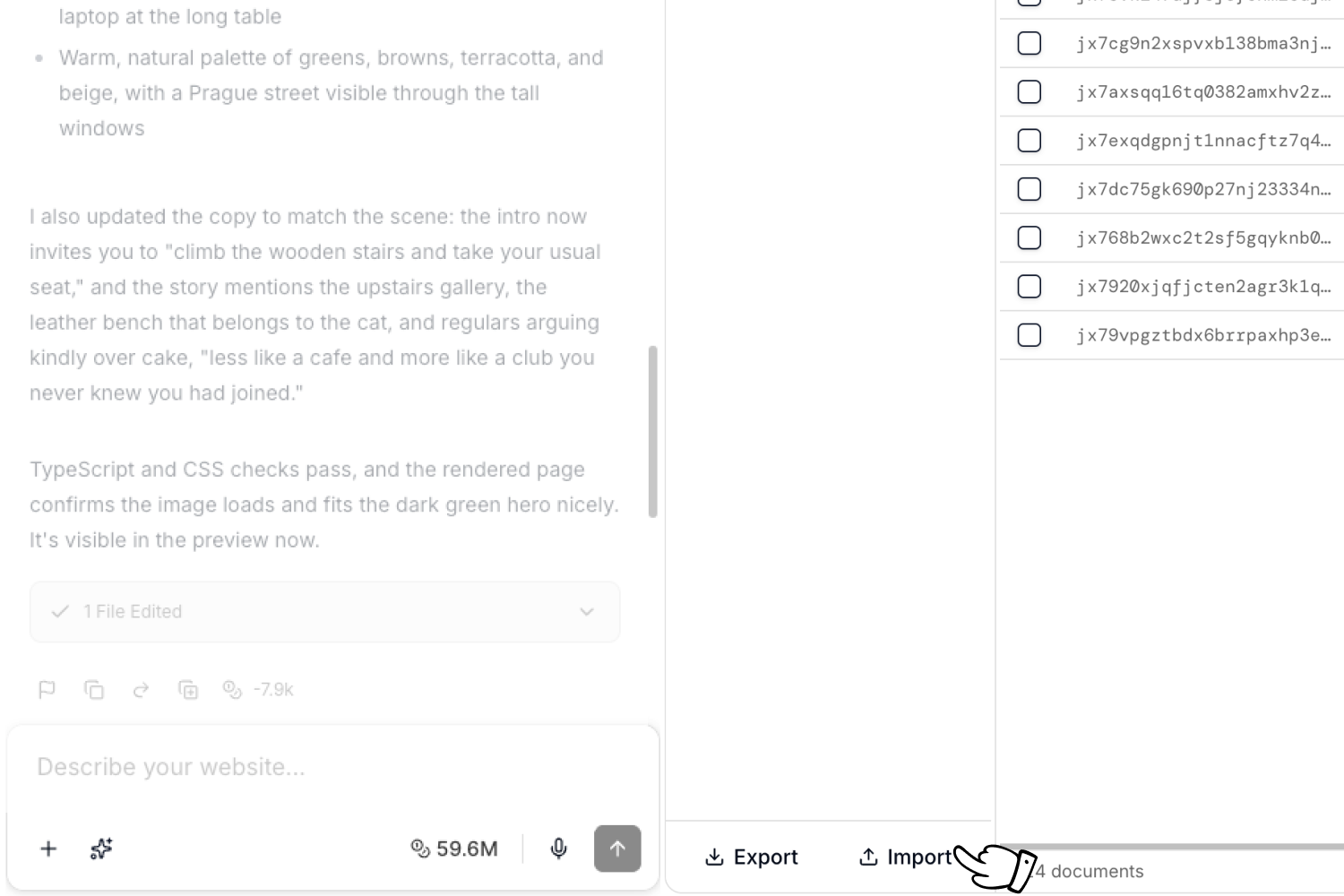
Export packages your database into a snapshot and downloads it as a ZIP file containing every table and every row. Use it when you want to keep your own backup before bigger changes or work with your data outside Vibewax.
Import restores a snapshot ZIP into the database you’re currently viewing. It replaces everything that’s already there, so Vibewax names the file you picked and asks you to confirm with Replace and import. This can’t be undone, so export the current state first in case you want it back. When the import finishes, Vibewax tells you how many rows were written and reloads the preview. You can try a snapshot out in your Testing database before using it on real data.
Both actions run in your browser, so leave the tab open until they finish. Large databases can take a while.
Files your project stores, such as uploaded images or documents, are not part of the snapshot. The snapshot covers table data only.
Live and Testing databases
By default your project uses a single Live database, shared by your published site and your chat preview. Any change you make while building shows up on the published site straight away. Adding a Testing database creates a separate copy for you to work in, without changing the data your users see.
Adding a testing database
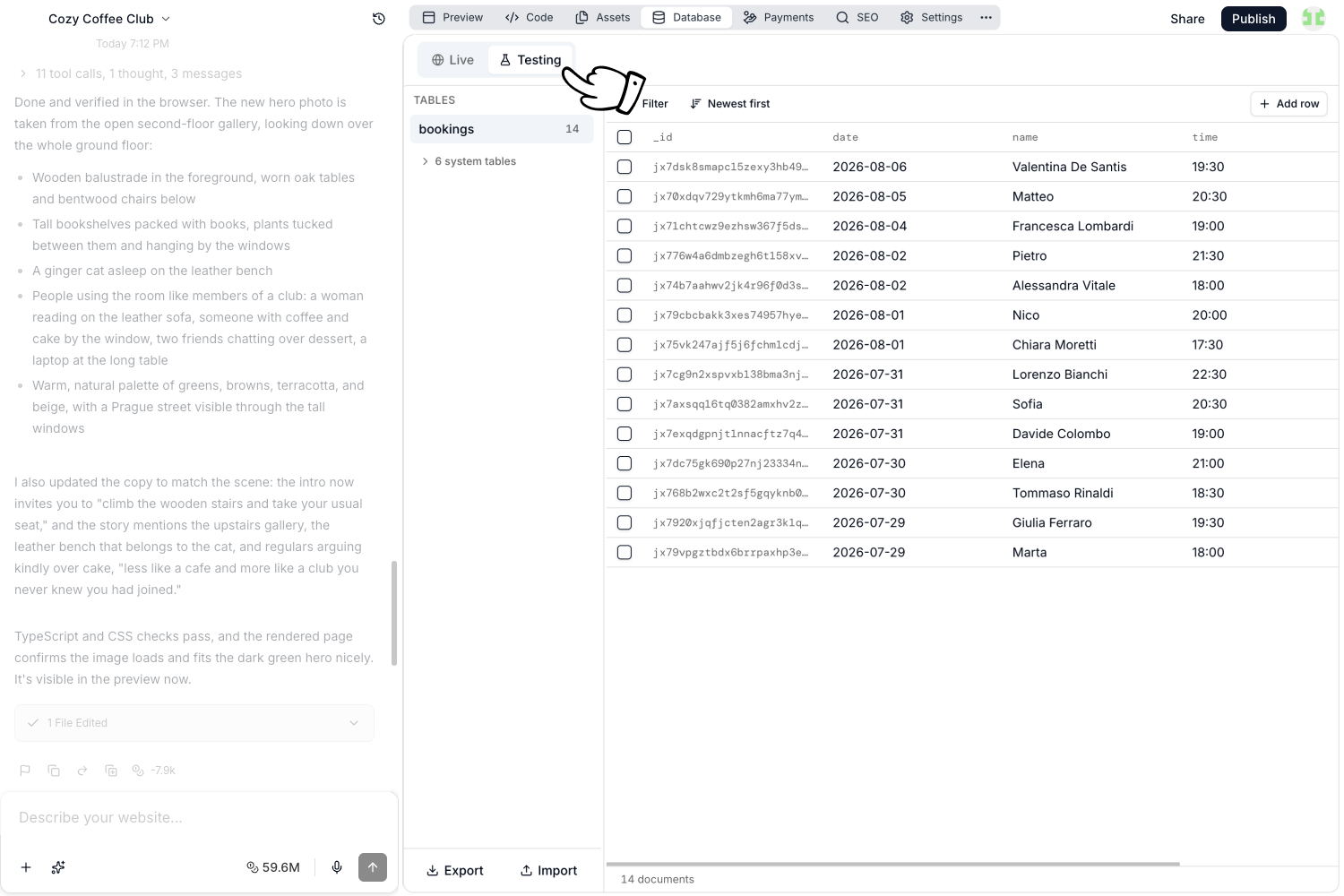
- Open the Database tab in your chat.
- Click Add testing mode.
- Wait for setup to finish.
Vibewax creates a second database and copies your Live data into it.
If your app already stores files uploaded by its users (see App user uploads), the Testing database starts empty.
Letting the agent choose Testing
Once your project is published and has real data, the agent checks with you before it changes the backend. When a request touches the database or server functions, it asks whether to make the changes in Testing or on Live.
- Develop in Testing: The agent creates or selects your Testing database and makes the changes there. Your users keep working with Live data in the meantime.
- Continue on Live: The agent changes the published app and its data.
Pick Testing when the change could break something your users rely on, such as renaming a field or reworking a form that writes to the database.
Switching between databases
Use the Live and Testing buttons at the top of the tab to switch between the two databases. Switching points your project at the selected database and reloads the preview, so chat and preview both read and edit the one you selected.
Work you do in Testing still changes your project’s code. When you switch back to the Live database, Vibewax redeploys the schema and functions, so structural changes you made while testing carry over to your published project. The data itself stays behind in the Testing database.
Publishing from Testing
You can publish while the Testing database is active. Click Publish and the menu shows a Testing Database Active notice: publishing promotes your code to Live after a compatibility check, while your chat and preview stay on Testing. Testing data and secrets are never copied to Live.
The compatibility check makes sure your changes still work with the data your published app already holds. If they don’t, Vibewax blocks the publish and offers Ask agent to make compatible. Click it and the agent adjusts the changes so they work with your Live data, then you can publish again.
Publishing from Testing is available for Git-backed projects only. In other projects the Publish button stays greyed out until you click Switch to Live.
Duplicating your own project
When you duplicate your own chat, the copy gets a separate database. Vibewax copies the current table data where supported; older projects with a legacy App Files setup may start with an empty database and no uploaded files. A duplicate does not restore data from an earlier point in time.
Example uses for a database
You’ll most often reach for a database for features like these:
- Contact forms: Store the messages people send through your contact or inquiry form.
- Newsletters: Collect email addresses and keep track of when each person subscribed.
- Content management: Build a system that holds your blog posts, case studies, reviews, or comments.
- Bookings and requests: Store appointment requests and event registrations.
- Admin panels: Build an internal page for reviewing form submissions, managing subscribers, or moderating content.
- Notifications: Get an email when someone fills in a form or a new registration lands in your database.
You don’t have to design the structure yourself. Describe what you want to store, and the agent creates the table and wires it into your project.
Example prompts:
Add a database called "Leads" for contact form submissions, with name,
email, phone, and message in it. Connect the contact form so every
submission is saved automatically, and email me a notification each
time.
Create a database of articles, with title, description, content, image,
and publish date in it, and use it to render a list of blog posts on
the website.Frequently asked questions
Do I need to set up a database at all?
No. Every Vibewax project gets one automatically. You don’t need to set one up with a provider, enter credentials, or connect anything. Describe what you want to store, such as contact form submissions or blog posts, and the agent creates the tables and wires them into your project.
What database does Vibewax use?
Every project has its own isolated database with real-time updates and automatic scaling, hosted in the EU. See Databases.
How do I view and edit my data?
The Database tab lists your tables and shows the rows in each one. You can filter and sort them, edit values right there, add rows, or delete them. Creating tables and changing which fields they have happens in your project’s code, so ask the agent for those, for example: “Add a phone field to the Leads table.”
Can I work on test data instead of my live data?
Yes. In the Database tab, click Add testing mode and Vibewax creates a Testing database, a separate copy of your data that you can work in without changing what your users see. You can switch between your Live and Testing databases whenever you want, and publish from either one. Publishing from Testing runs a compatibility check first so your published app keeps working with its existing data.
How do I download a copy of my data?
Export in the Database tab downloads a ZIP snapshot of your table data, and Import restores one. Files your project stores, such as uploaded images, are not part of that file. Keep a snapshot before bigger changes, since deleting rows and importing a snapshot both replace data permanently.