

Chat
Chat overview
A chat is where you and Vibewax collaborate on a single project. This could be a marketing website, a landing page, or an internal tool. You describe what you want, and the agent brings it to life, even if you don’t know how to code.
Each chat represents one project. Vibewax keeps context inside the chat, so it remembers what has already been built and continues from there.
Starting a new chat
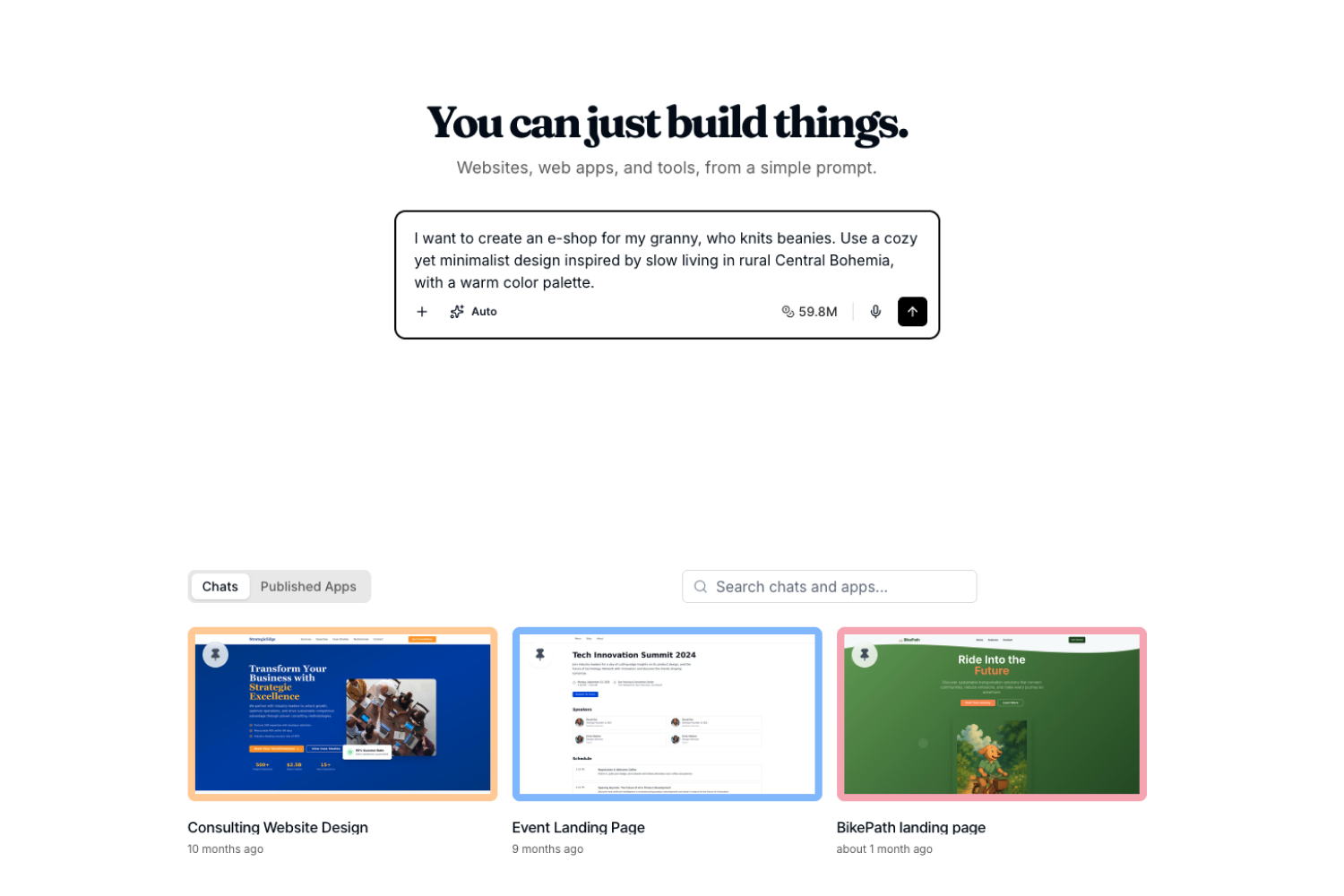
Your home screen shows all your projects as a grid of cards. Use the Chats tab to see your works in progress, or switch to Published Apps to see everything you’ve made live. You can also use the search bar to find a project by name.
To start something new, click into the prompt at the top of the page and describe what you want to build. No special commands or technical language needed. Just explain it the way you would to a person.
Inside a chat
Once you’re in a chat, you’ll see two main areas: the conversation on the left, where you talk with the agent, and the workspace on the right, where you can view and manage every part of your project.
A project can also hold several variants, each with its own code and conversation. Switch between them from the top bar.
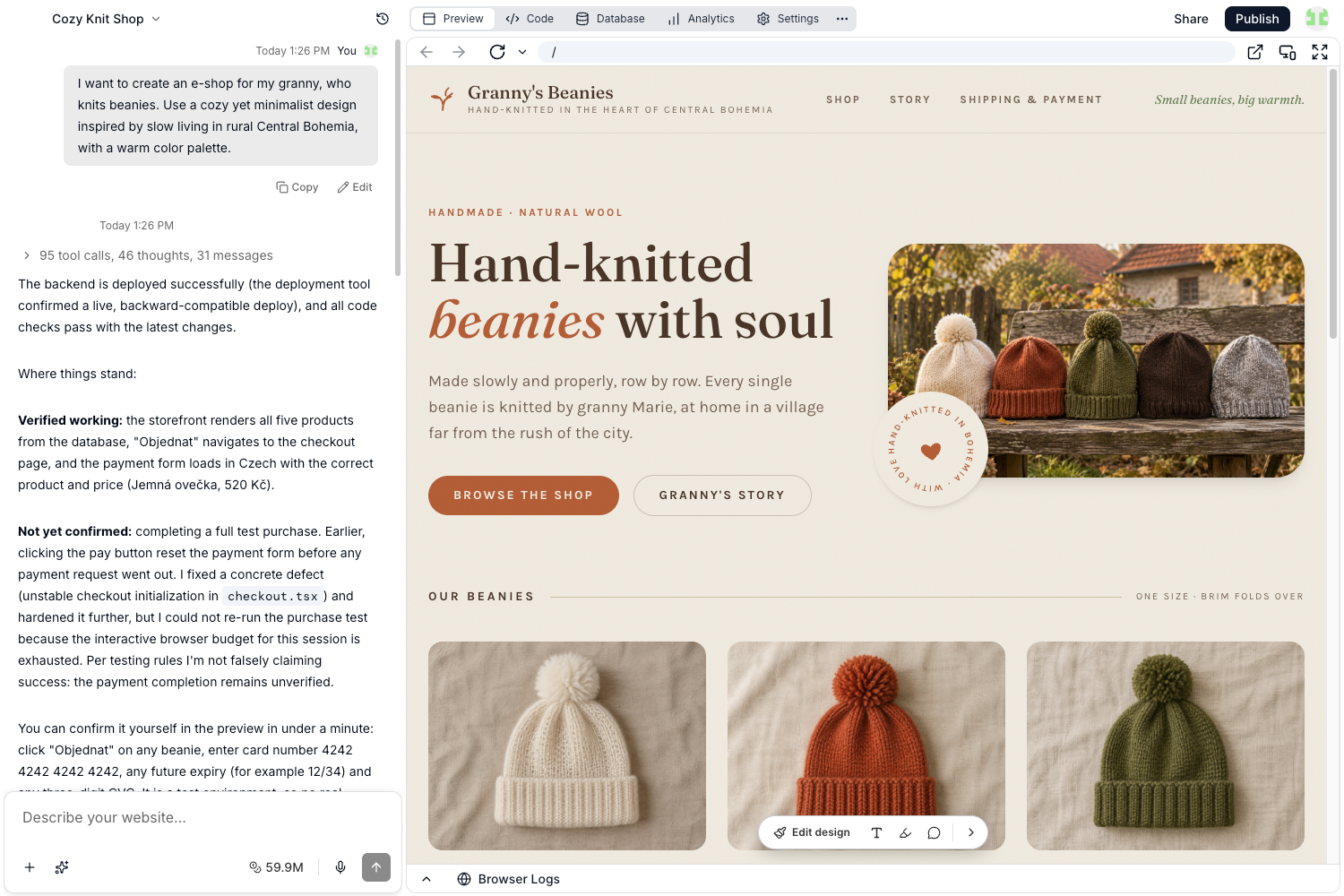
The tab bar at the top of the workspace switches between different views of your project. Each tab focuses on a specific area:
- Preview: See your app or website running in real time as the agent builds it.
- Code: Browse the full source code of your project.
- Assets: Manage the files and media used in your project. See Assets.
- Database: View and edit your project’s data. See Databases.
- MCP: Turn your app’s features into tools that Claude, ChatGPT, and other AI assistants can use. See Your app as an MCP server.
- Analytics: Track visitors and traffic to your published site. See Analytics.
- Settings: Configure your project name, sharing, custom domains, and secrets. See Settings.
- SEO: Optimize how your project appears in search results and on social media. See SEO.
- Security: Review your project for security issues and fix what turns up. See Security.
Click the … menu at the end of the tab bar to pin or unpin tabs. Pinned tabs stay visible in the bar, so the ones you use most are always one click away.
Working with the agent
The prompt at the bottom of the chat is your main way of talking with Vibewax. A few options make it easier to get exactly what you want.
Adding content
Click the + button next to the prompt to:
- Upload from device: Upload files directly from your computer to the current project.
- Create in Canvas: Canvas is a built-in tool for creating graphics inside Vibewax, so there’s no need for external tools.
You can also drag files straight into the chat. They land in Assets automatically and the agent uses them where relevant.
Click any attachment in the conversation to open it in a preview. Images, video, audio, and text files all open inside Vibewax, with download and reuse actions in the preview.
Execution mode
Click the mode button in the bottom-left of the prompt to choose how the agent approaches your request: Auto, Plan, or Build. Auto works well as a default. See Modes for details on when to use each one.
Credits
Your remaining credits are shown in the bottom-right of the prompt.
Voice input
Rather than typing, you can speak your request aloud and Vibewax will process it as text.
Version history
Vibewax saves a version of your project every time the agent finishes a change, so you can always go back. Click the clock icon in the top bar to open Version history. Each entry is named after the message that produced it, with the newest at the top. The version that is currently live is marked Published, and the one you’re working in is marked Latest.
Click a version to see it in the preview, exactly as it was at the time. From there you can:
- Restore it. Vibewax asks you to confirm, then makes that version the latest one. Changes made after it are removed from the project.
- Go to message to jump to the point in the conversation where the version was created.
- Open in new tab to look at the version in a full browser window.
Click Back to latest when you’re done looking at an earlier version.
Restoring changes your project’s code. Your published site stays as it is until you publish again. Restoring a version does not recover database data or files uploaded to your app. Those need a separate backup.
Older projects don’t have the version history panel. In those, use the Restore this version button under any agent response to go back to that point.